
Add excused absences
Add excused absences
Updated on January 25, 2023
Here’s how you can add an work rule violation to an associate using TrackPath.
Log in to your TrackPath account and select the Associates tab on the left hand side of the page.
From the Associates list view, select the associate you want to add an occurrence for. You can use the search field to quickly find the associate.
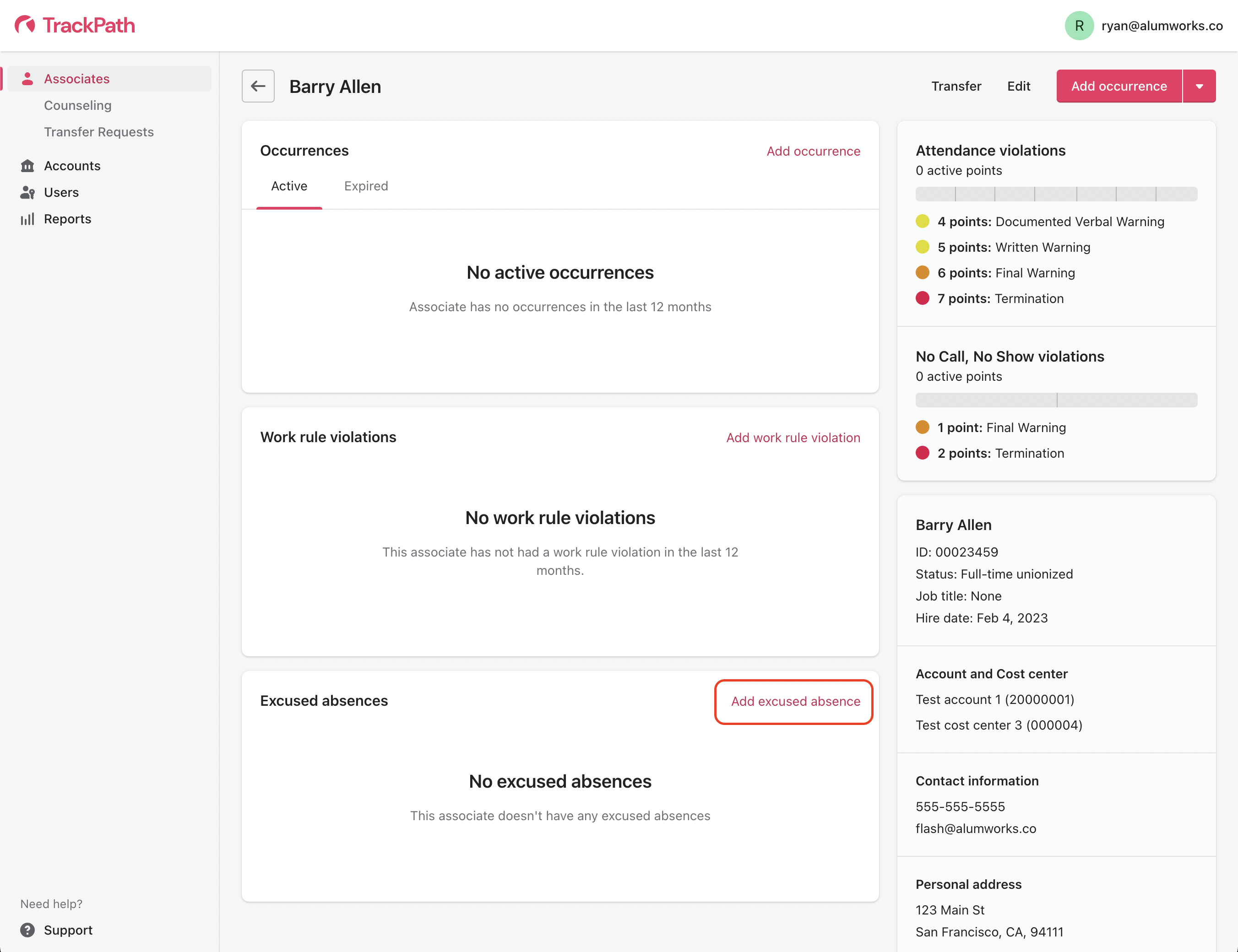
From the Associate view, select the action to Add excused absence.
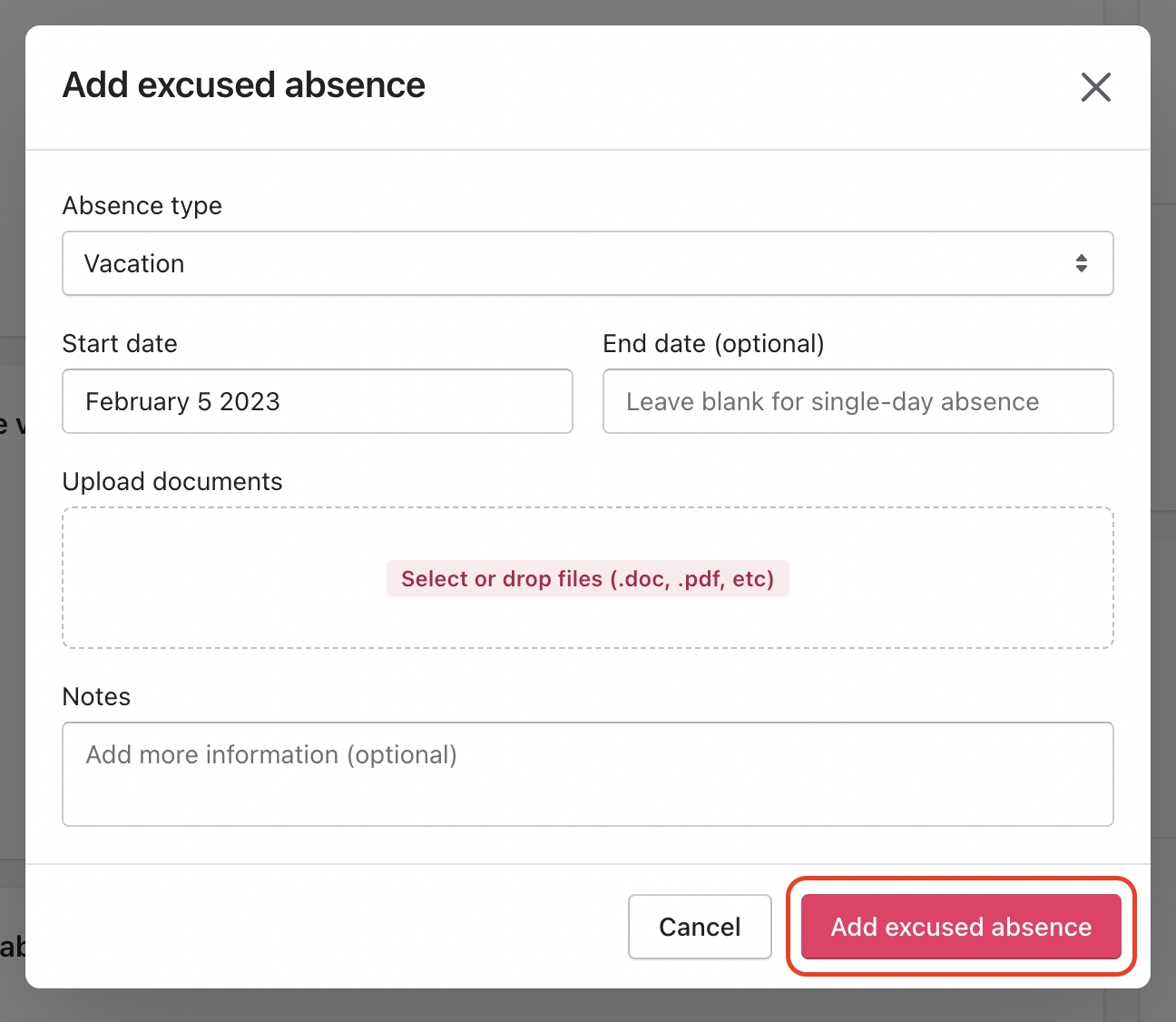
Select the absence type from the dropdown menu. Next, specify the date of the absence. Enter an end date for any multi-day excused absences. Upload any supporting documents and any additional notes about the absence. When you’ve finished that, click Add excused absence.
Still need help?
Send us an email and we'll get back to you as soon as we can.